Web pages show compressed previews — one click on “HD” shows the highest resolution the platform serves

Every RedNote photo,
in its sharpest version

The web page shows compressed previews. Open a note, click “HD”, and see the highest-resolution version the platform serves — zoom in, then save it neatly by author and note.

SHARP · SIMPLE · LOCAL

20 free views + 20 saves a day No sign-up Images never touch our servers
NEW v2.0 is out: RedNote support, and Pro activates right inside the extension FAQ →
rednote.com/explore/66f2a…
Sample note photo
Summer Film Notes
A crochet hat in the garden 🌼

The afternoon light was just right for a few close-ups of this rainbow crochet hat…

#portrait #crochet #summer

4 images in this note ● detected
01
02
03
04

Illustrative mock-up with a real note photo.

COMPARE

Zoom in and see the difference

The page usually shows a compressed preview. Drag the slider to compare a preview with the HD version.

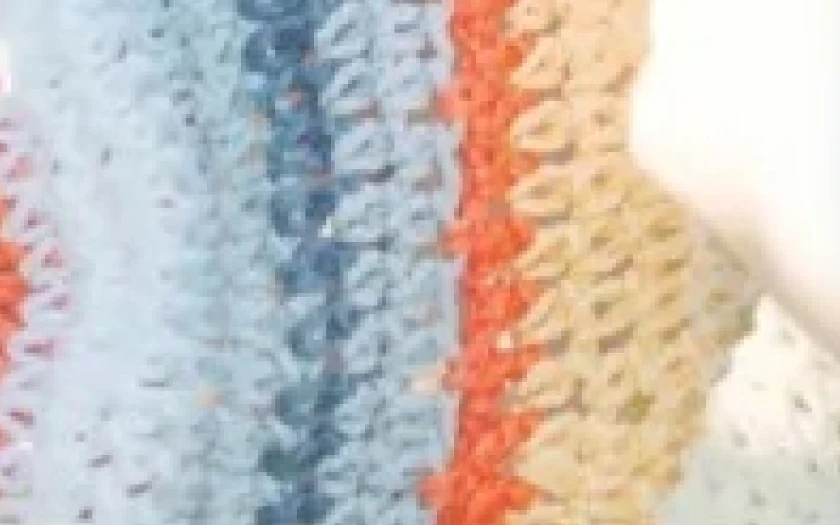
Web preview HD version

Real comparison: the same spot of the same photo — the web preview on the left, the HD version the extension opens on the right — enlarged to the same size, no retouching. Real gains depend on the versions the platform serves; some images have no higher-resolution version.

SIMPLE BY DESIGN

So simple, no tutorial needed

Open a note and an “HD” button appears on the image. One click and the HD version is in front of you.

  • Keeps your browsing as it is — just one button on note images
  • Works on both Xiaohongshu and RedNote (international) web
  • Scroll to zoom, drag to pan, double-click for 100%, arrow keys to switch
Add to Chrome — free
01
InstallAdd it from the Chrome Web Store
02
Open any noteOn Xiaohongshu or RedNote web
03
Click “HD”Zoom in, or save it to your computer
ORGANIZED

Saved, and already sorted

Files go into “Author / Note title” folders and keep their original order in the note.

  • Saves the format the platform serves (including HEIC) — no re-compression
  • Optional conversion to JPG / PNG / WebP for compatibility (Pro)
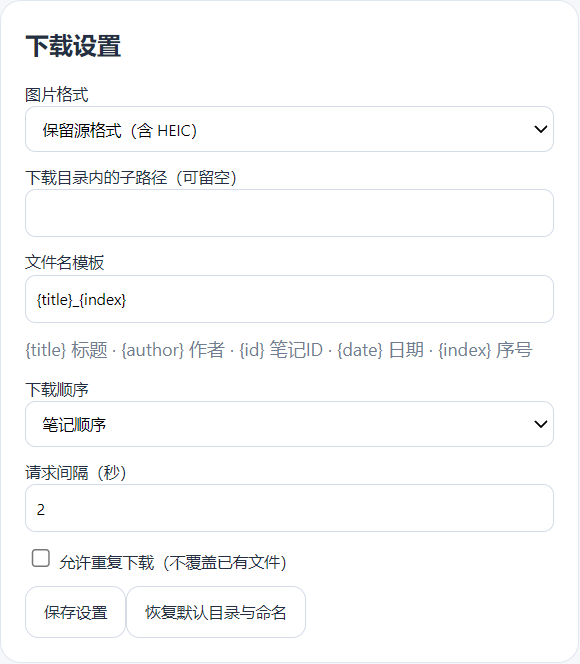
  • Custom download sub-folder and file name template (Pro)
Add to Chrome — free
The extension’s Download settings panel
Actual extension UI · Download settings (the interface is in Chinese)
FEATURES

Everything you need to look closer

HD version

Fetches the highest-resolution version the platform serves. The extension never re-compresses it.

Immersive zoom

A dedicated viewer with smooth zoom, drag and one-click 100% pixels.

Save a whole note

Pick images or save the whole note into author and note folders.

PRO

Videos & Live Photos

Save note videos and covers; Live Photos are saved as a still plus an MP4.

PRO

Profiles & lists

Save notes in bulk from an author's profile or your accessible saved and liked lists, then save in bulk.

PRO

Note text

Save the title, text and publish date as Markdown alongside the images.

PRO
20free HD views a day, plus 20 single saves
0images uploaded to our servers
2sites: Xiaohongshu · RedNote
4Pro plans, no auto-renewal
PRIVACY FIRST

Your privacy comes first

Images download straight from the platform to your computer, and conversions happen inside your browser. We don't need an account and don't want to know what you look at.

  • No browsing history collection, no tracking, no ads
  • No account with us, and the extension never reads your password
  • Runs only on Xiaohongshu and RedNote; media domains are requested on demand
💎 PRO

Go Pro, unlock everything

Pick how long you need it. Timed plans start at first activation and simply end: you drop back to Free and nothing renews. One code works in one browser at a time, and you can move it yourself.

Free

¥0 no activation
  • HD viewing and zoom
  • 20 HD views and 20 single-image saves a day (counted separately)
  • Save one image at a time from the HD viewer, filed by author and note
  • Unlimited images · whole-note and batch download
  • Videos, covers, Live Photos
  • Note text · profile & list batch saving · format conversion
Add for free

Pro

¥3.9 from · 3-day trial
  • Everything in Free
  • Unlimited HD images
  • Videos, covers, Live Photos (still + MP4)
  • Note text saved as Markdown
  • Whole-note and batch download; batch saving from profiles, saved and liked lists
  • Format conversion, custom folders and file names, multi-note queue
Choose a plan

Sold in the MOSK STUDIO shop on Kufaka (a Chinese page). Prices are in CNY; pay with Alipay or WeChat Pay and the code is delivered right after payment. “Upgrade to Pro” in the extension opens the same shop.

FAQ

Questions & answers

What is XHS Original Image Helper?
A Chrome extension. While you browse notes on Xiaohongshu or RedNote web, it lets you view and save the highest-resolution version of each image the platform serves, instead of the compressed preview on the page. The extension interface is currently in Chinese.
Is it the author's original upload?
Not necessarily. The extension saves the highest-resolution version the platform actually serves and never re-compresses it, but the platform may have processed the image at upload. It is not an AI upscaler and cannot remove watermarks baked into the pixels.
Is it free?
The free plan lets you view 20 HD images and save 20 images one at a time each day, counted separately (re-viewing the same image the same day doesn't count again; it renews after midnight Beijing time). Pro is an optional paid upgrade (3-day trial, 30-day, 365-day or lifetime) that unlocks unlimited images, whole-note and batch download, videos and Live Photos, note text, profile and list batch saving, format conversion and custom naming.
How do I buy and activate Pro?
Pick a plan in the MOSK STUDIO shop on Kufaka and pay with Alipay or WeChat Pay; the code appears on the order page right after payment. In the extension panel, choose to enter an activation code, paste it and activate. One key activates one browser; to move to a new computer or browser, just enter the same key there.
How do the timed plans work?
A plan starts the first time you activate it, and the extension panel shows its last day (it ends at midnight Beijing time). Moving to another browser does not restart the clock. When it ends you drop back to Free and nothing is charged. To continue, buy another code and enter it after the current one ends; entering it early wastes the remaining days. Lifetime never expires.
Do I need a Xiaohongshu account?
The extension itself needs no account. Whatever you can normally browse, it can read; content that requires login still requires you to log in. It never reads your password or uploads login data.
Which browsers are supported?
Desktop Chrome 116+, plus Chromium browsers such as Edge that can install from the Chrome Web Store. Firefox and mobile browsers are not supported.
Can I use saved images commercially?
Copyright belongs to the original authors. Being publicly visible doesn't grant reuse rights — use saved images for personal reference only, and ask the author before reposting or commercial use.
Independent third-party tool, not affiliated with Xiaohongshu / RedNote.

See every great photo
in full detail